The FarmWizard software produces a range of veterinary-related reports suitable for farm assurance purposes, including medicine purchases and animal treatment records.
Animal Treatment Reports
Vet Treatment Rule Report
To produce a customised list of medicine treatments and veterinary actions, follow these steps:
1.Go to the Reports main menu and click on Treatments under the Rule Reports sub menu
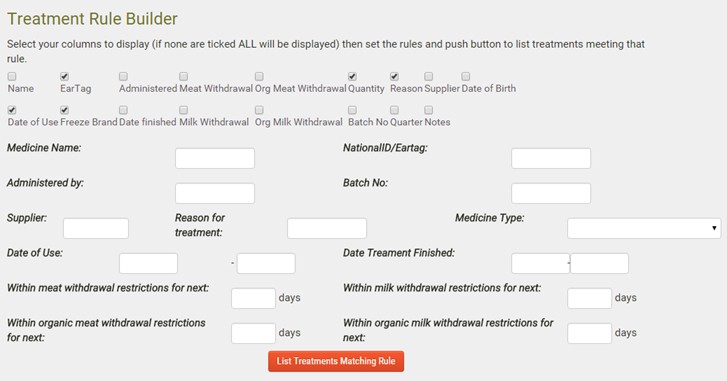
2.Select the columns for the report by ticking the required boxes at the top of the screen
3.Use the drop down lists and text boxes to define the treatment records to be included in the report
4.Click List Treatments Matching Rule to create an on screen report. The report grid can be sorted by clicking on the desired column heading. You can download the report in spreadsheet format or as a PDF file for printing
12 Month Vet Treatments
To view treatments for the last 12 months, go to Reports > QA Reporting and click on Vet Treatments. The report grid can be sorted by clicking on the desired column heading.
TB Test Reports
TB Tests that have been recorded on FarmWizard can be viewed by clicking on Design Report under the Reports > QA Reporting sub menu. Set the date range using the From and To date picker controls at the top of the screen and click List TB Tests to show all TB test records within the defined date range.
Medicine Purchase Reports
12 Month Medicine Purchases
Go to Reports > QA Reporting and click on Medical Purchases to generate an on-screen report that can be downloaded in spreadsheet of PDF format.
Custom Medicine Purchase Reports
To create a custom medicine purchase report, go to Reports > QA Reporting and set the required date range at the top of the screen. Within the Medical Purchases section, you have two options:
1.Click List all Medical Purchases to generate a list of the entire medicine stock history
Or:
2.Select a filter name from the drop down list and type the value to filter on into the text box to the right. For example, a particular Batch Number or Purchase Date. Click Generate Filtered Report to create the report on screen.

