Like many software systems, there are several methods of entering data; choose the method that best suits your needs or preferences. For example, the Quick Links and Batch Manager will often be better for recording breeding events and routine treatments for large, block calving herds.
The main methods of recording breeding events are:
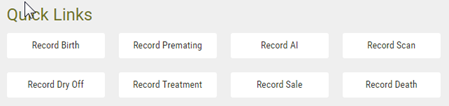
➢Via the Home screen Quick Links. You can type in one or more freeze brand numbers or select from a list to record an event. This is the fastest way to record large amounts of data
➢Via the Herd Manager > List Herd screen. Use this to enter events for animals on an individual basis
➢Via the Herd Manager > Batch Manager screen. This is suitable for recording all types of event or action for larger batches of animals
➢Schedule-driven entry via the 7 Day Planner report
➢Via a Smartphone or Tablet computer – this requires a valid license for the mobile App
In more detail:
Home Screen Quick Links
The Quick Links options are useful for quickly entering large volumes of breeding event data, particularly for herds that block calve.
The method of operation is common to all breeding event entry:
1.Click on the Home screen button for the required event type
2.Select the required animals. This can be done by one of the following methods:
a.Type in a list of management (freeze brand) numbers, each one separated by a comma (,)
b.Use the multi-select list box
c.Use the Group or Year Born filter in combination with b) above to shorten the list of animal IDs in the list box
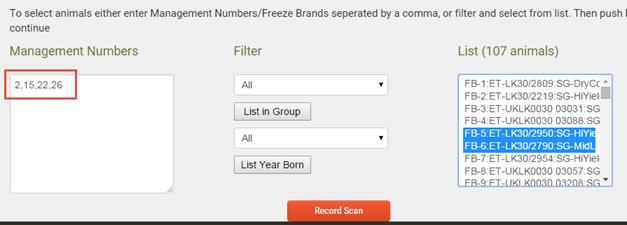
3.Click the Record... button. On the following screen, the matching animal IDs will be confirmed along with boxes to enter the detail of the specified breeding event.

The Herd List (single animal entry)
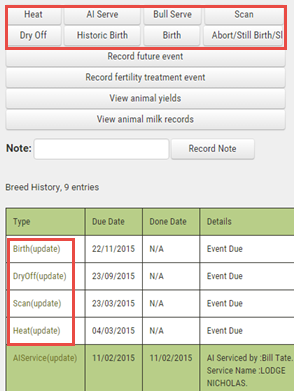
Breeding events for individual animals can be entered from Herd Manager > Herd List. Search or select the required brand number and either click on one of the event buttons or click on one of the "Event Due" events on the animal's breeding history (white background) to record the event detail.
The Batch Manager
The Batch Manager enables you to select or filter multiple animals to record a breeding event. The attributes of the the breeding event should be common to all animals that you select in one batch e.g. served to the same bull on the same day.
The 7 Day Planner
The 7 Day Planner accessed from the Reports main menu gives access to single animal breeding entry screens.
1.For the required Due for... event on the report, click on the scheduled date against the brand number (shown below)

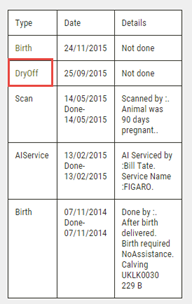
2.The animal's breed history will display to the right of the screen. Click on the event name to move to the data entry screen
3.On the data entry scree, complete the detail of the event and click Save
The Mobile App
Users with a valid license for the mobile App can enter all breeding events on a Smartphone or Tablet. For further details or assistance, please contact the FarmWizard Service Desk.
